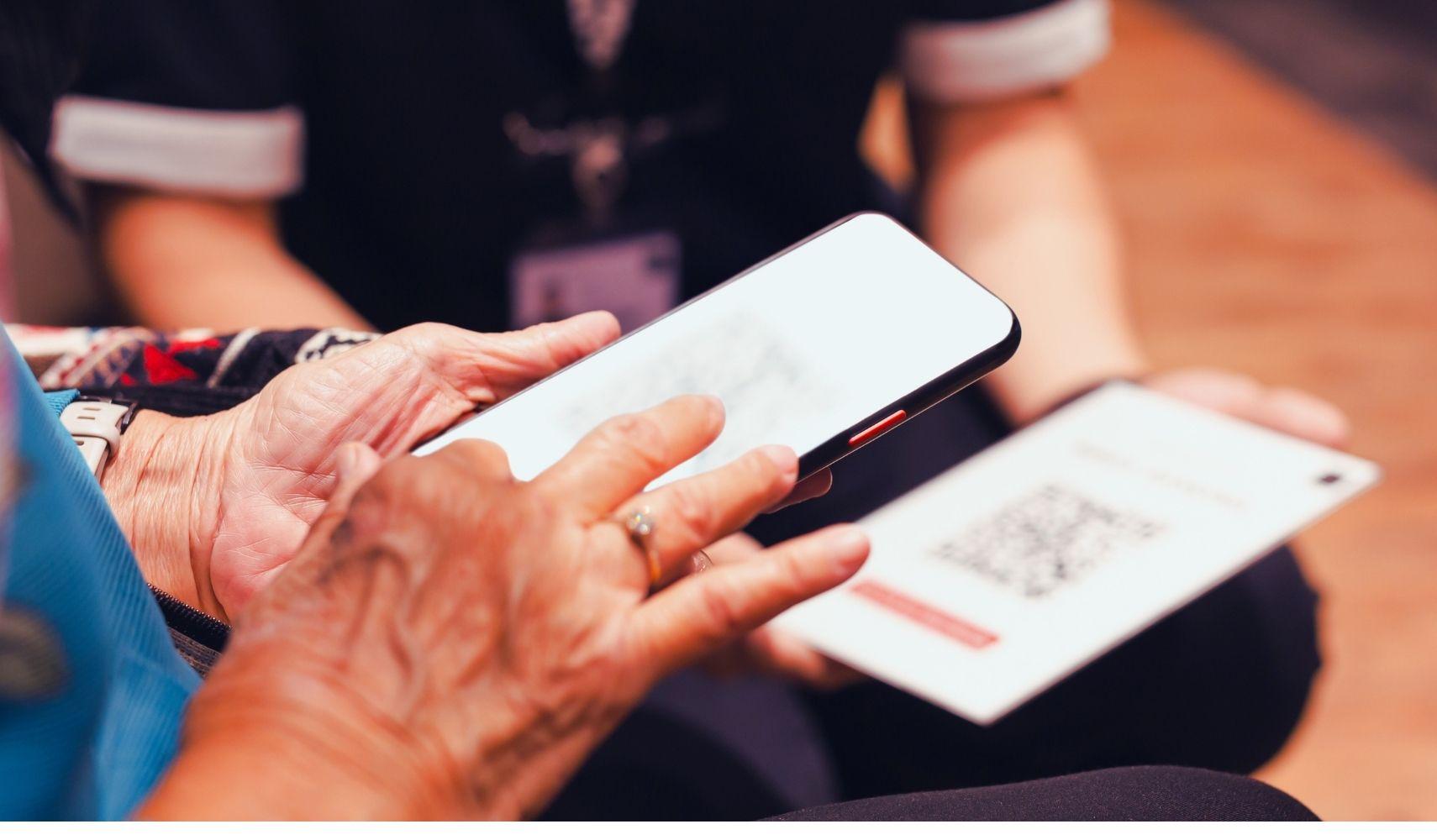
QR Code Not Reading Solution
QR codes have become an important part of modern digital services. They are used for payments, account verification, travel services, app downloads, and mobile connectivity solutions such as eSIM activation.
For many travelers and international users, scanning a QR code is the first step to installing an eSIM. Instead of using a physical SIM card, users can activate their mobile data plan by scanning the QR code provided by their eSIM provider.
However, sometimes the QR code does not scan properly. The camera may fail to recognize it, the activation process may not start, or the device may show an error message.
A QR code not reading problem can happen for several reasons, including camera issues, incorrect scanning conditions, device settings, or problems with the QR code itself. Fortunately, most QR code scanning problems can be solved with a few simple steps.
Why Is My QR Code Not Scanning?
When a QR code does not work, the issue is usually related to how the code is being scanned or how the device processes the information.
Common reasons include:
- -Poor camera focus
- -Low-quality QR code image
- -Incorrect distance from the code
- -Screen brightness problems
- -Unsupported device
- -QR code already used
- -Internet connection issues
- -Camera permission settings
- -eSIM compatibility problems
Understanding the cause makes it easier to find the right solution.
Clean Your Camera Lens
One of the simplest solutions is checking your phone camera.
A dirty camera lens can prevent your device from focusing correctly on the QR code. Even small fingerprints, dust, or smudges can affect scanning performance.
Before trying again:
- -Clean the camera lens gently
- -Make sure there are no marks or scratches
- -Open the camera again and retry
This simple step solves many QR code scanning issues.
Improve QR Code Visibility
The quality of the QR code plays an important role in successful scanning.
If the QR code is displayed on another phone, laptop, or printed paper, make sure it is clear and easy to read.
Avoid:
- -Blurry screenshots
- -Damaged images
- -Cropped QR codes
- -Reflections on the screen
- -Low brightness displays
For eSIM activation, the QR code contains important information needed to install the mobile profile. A damaged or unclear code may prevent the installation process from starting.
Adjust the Distance Between Your Phone and QR Code
Many users place their phone too close or too far away from the QR code.
The camera needs the correct distance to focus properly.
Try these steps:
- -Hold your phone steady
- -Move slightly closer or farther away
- -Wait a few seconds for the camera to recognize the code
- -Avoid shaking the device
Modern smartphones usually detect QR codes automatically, but proper positioning helps the camera read the information faster.

Increase Screen Brightness
If you are scanning a QR code from another device, screen brightness can affect recognition.
A dark screen may make the QR pattern difficult for the camera to detect.
Increase the brightness of the device showing the QR code and try scanning again.
This is especially useful when activating an eSIM from a digital QR code received by email.
Check Camera Permissions
Your phone needs permission to use the camera for QR scanning.
If camera access is disabled, the QR code scanner may not work correctly.
Check your settings:
- -Open phone settings
- -Find camera permissions
- -Allow camera access
- -Try scanning again
Some devices also require the built-in camera app or a supported QR scanner to read codes properly.
Restart Your Phone
A simple restart can fix temporary software problems.
Sometimes the camera app or network settings may not work correctly due to background processes.
Restarting your phone refreshes:
- Camera functions
- Network settings
- System processes
- eSIM installation features
After restarting, open the camera and try scanning the QR code again.
Make Sure Your Device Supports eSIM
If you are scanning a QR code for eSIM activation, your phone must support eSIM technology.
Not every smartphone can install an eSIM profile.
Before activation, check that your device supports:
- eSIM functionality
- Carrier compatibility
- Required software version
If the device does not support eSIM, the QR code will not complete the installation process even if it scans correctly.
Use Manual eSIM Activation
Sometimes the QR code scanner does not work, but the eSIM can still be activated manually.
Many eSIM providers provide activation details that allow users to enter information manually.
Depending on your device, you may need:
- -Activation code
- -SM-DP+ address
- -Confirmation code
Manual installation can be a useful alternative when the camera cannot read the QR code.
Check If the QR Code Was Already Used
An important point about eSIM QR codes is that they are often designed for one-time activation.
If a QR code was already scanned before, it may not work again.
This can happen when:
- -The eSIM was installed on another device
- -The installation process was completed previously
- -The QR code was accidentally activated
If this happens, contacting the eSIM provider is usually the best solution.
Make Sure You Have an Internet Connection
Although QR code scanning itself does not require mobile data, eSIM activation usually needs an internet connection.
During installation, your phone may need to communicate with the eSIM provider’s activation system.
If activation fails after scanning:
- -Connect to Wi-Fi
- -Check your internet connection
- -Restart the installation process
A stable connection helps complete the eSIM setup successfully.
Update Your Phone Software
Outdated software can sometimes create problems with QR code scanning and eSIM installation.
Phone manufacturers regularly improve compatibility, security, and network features through software updates.
Before activating an eSIM, make sure your device has the latest available updates.
This can help prevent unexpected errors during installation.
Try Scanning Through Mobile Settings
Some users try scanning QR codes only through the camera app.
However, eSIM activation usually works best through the dedicated mobile settings menu.
On most devices, the process includes:
- Opening mobile network settings
- Selecting “Add eSIM” or similar option
- Choosing QR code activation
- Scanning the code
Using the correct activation method improves the chance of successful installation.
Why Choosing a Reliable eSIM Provider Matters
A QR code problem is not always caused by the user’s device. Sometimes the quality of the eSIM service also affects the activation experience.
A reliable eSIM provider offers:
- Clear installation instructions
- Valid QR codes
- Compatible network solutions
- Customer support
- Easy activation process
Choosing a trusted provider helps avoid unnecessary setup problems and makes international connectivity much easier.
Stay Connected Easily With eSIMGhost
Installing an eSIM should be a simple process. A QR code issue can usually be solved by checking your device, improving scanning conditions, or following the correct activation steps.
eSIMGhost provides digital eSIM solutions designed for travelers, students, and remote workers who need reliable mobile data without dealing with physical SIM cards.
With flexible eSIM packages and easy activation, staying connected abroad becomes faster and more convenient.
Whether you are traveling for business, studying overseas, or exploring new destinations, having the right eSIM provider helps you stay online wherever you go.
Get Your eSIM and Activate Easily
Do not let a QR code issue interrupt your travel plans. Choose a reliable eSIM package that matches your destination and data needs.
Enjoy simple activation, flexible mobile data, and a better travel experience with eSIMGhost.
Find the right eSIM plan for your journey today.
[ eSIMGhost]

Data Running Out Quickly: Reasons and Solutions
20 Jun 2026

eSIM Internet Slow: What to Do?
20 Jun 2026
eSIM Activation Failed: Causes and Solutions
20 Jun 2026